
How to Use the IVR Converter Tool
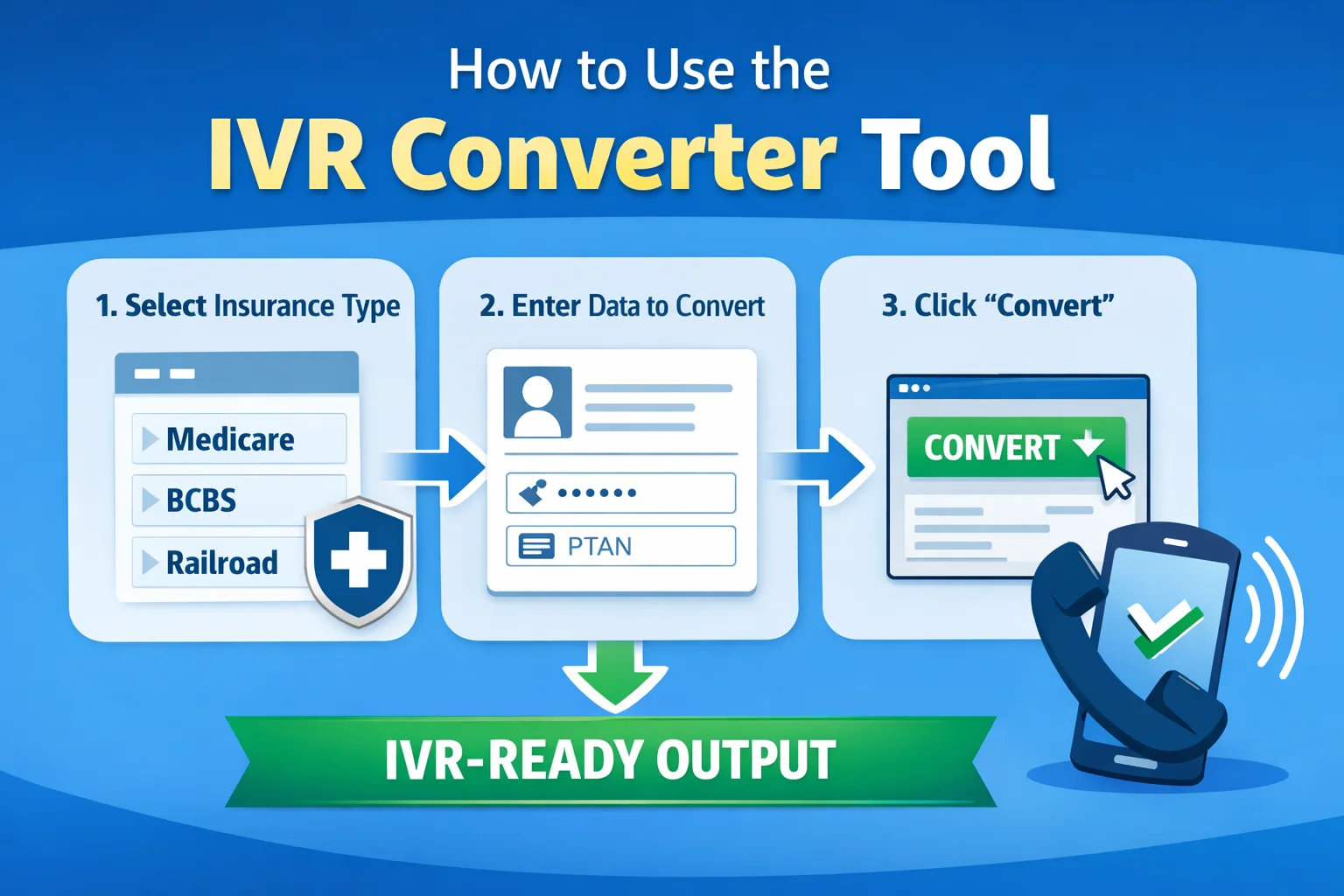
IVR systems require properly formatted input to read and process information correctly. Manually preparing Medicare and insurance data such as member names, subscriber IDs, or PTANs for IVR systems can be time consuming and error prone.
The IVR Converter Tool simplifies this process by converting one piece of Medicare or insurance information at a time into an IVR ready format. Whether you are converting a member name, Medicare ID, or another field, the tool instantly prepares it for IVR use. This guide explains how to use the IVR Converter tool step by step.
What the IVR Converter Tool Does?
The IVR Converter Tool is designed to convert individual Medicare or other insurance data fields into a format suitable for IVR systems. Instead of manually adjusting how information is spoken or processed by IVR systems, the tool:
- Converts one input at a time
- Ensures IVR friendly formatting
- Reduces manual effort and mistakes
Each conversion focuses on a single field, such as a name or ID, making the process simple and precise. Need a deep dive into each field? Read our guide on IVR Converter Input Fields Explained.
How to Use the IVR Conversion Tool?
Using the IVR Converter Tool is straightforward and requires only one input per conversion.
Step 1: Select the Insurance Type
In the first step, select the insurance type you want to convert data for. Examples include:
Each insurance type follows a different IVR formatting standard. Selecting the correct one ensures the data is converted properly for IVR systems.
Step 2: Enter the Data
Enter the value into the input field. Examples:
- •A member name for IVR pronunciation
- •A Medicare or subscriber ID for IVR reading
- •A PTAN for IVR system usage
Make sure the data is entered correctly, without extra spaces or characters.
Step 3: Convert the Data
Click the Convert button. The tool will:
- Process the entered value
- Convert it into an IVR-compatible format
- Display the converted result instantly
No additional formatting is required.
How the Conversion Works?
The IVR Converter handles one conversion per input. For example:
- •Entering a member name converts only the name
- •Entering a subscriber or Medicare ID converts only that ID
- •Entering a PTAN converts only the PTAN
If you need to convert multiple data points, simply repeat the process for each one.
Where the Converted Output Is Used?
The converted output can be used in:
Each converted value is optimized for clear IVR processing.
Who Should Use the IVR Converter Tool?
This tool is useful for:
- Medicare agents verifying policy details and enrollment status.
- Insurance professionals conducting daily claims follow-up and prior-authorization checks.
- Call center teams needing to navigate carrier DTMF telephony menus efficiently.
- Users working with IVR systems needing rapid keypad translations without errors.
Anyone who needs to prepare Medicare or insurance data for IVR use can benefit from converting individual fields quickly and accurately.
Try the IVR Converter now
Translate any Medicare Beneficiary Identifier (MBI), Provider PTAN, or Name into carrier-specific DTMF keypad tones in seconds.
Hassan is a healthcare revenue cycle professional and software designer dedicated to creating open-access, deterministic utilities that eliminate manual billing inefficiencies and telephone keypad conversion headaches.
Related Blog Posts & Calculators
IVR Converter Input Fields Explained
Understand the required IVR converter input fields used to convert insurance information accurately.
Clinical CalculatorGlobal Surgery Calculator
Search 10,000+ CPT codes to determine CMS 0, 10, or 90 day post-op global periods.
Billing CalculatorTimely Filing (TFL) Calculator
Calculate precise payer timely filing deadlines across 30+ major commercial and government payers.